
Pinterest is not just a social media platform.
It is a visual search engine.
Boards are how Pinterest understands what your content is about.
If you want your Pins to be discovered, your boards need to be created correctly.
This guide walks you through every step, from setting up your first board to optimizing it for visibility.
What Is a Pinterest Board and Why It Matters
Ready to grow your Pinterest presence with AI?
Get Started Free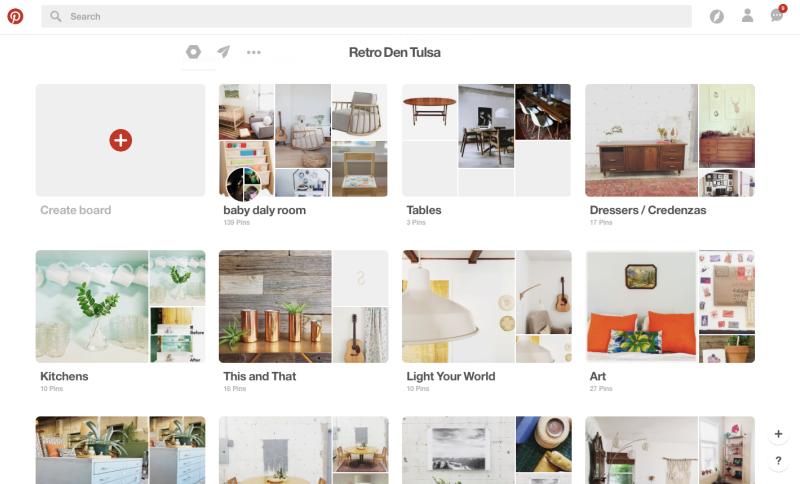
A Pinterest board is a curated collection of Pins focused on a specific topic or theme.
From an SEO perspective, a board functions like a category page. Pinterest uses the board name, description, sections, and saved Pins to understand topical relevance.
A well optimized Pinterest board helps:
- Pinterest categorize your content accurately for search and recommendations
- Users immediately understand what kind of content they will find
- Your Pins rank for relevant keywords over time
- Your profile look professional and trustworthy
Step 1: Log in to Your Pinterest Account
Visit https://www.pinterest.com and log in using your email or Google account.
If you are a blogger, marketer, or business owner, you should use a Pinterest business account. Business accounts unlock analytics, rich Pins, and ad features that help you track performance and growth.
Pinterest business account setup guide: https://help.pinterest.com/en/business/article/create-a-business-account
Step 2: Navigate to Your Pinterest Profile
After logging in:
- Click your profile photo in the top right corner
- This opens your Pinterest profile page
- Your profile displays all existing boards and saved Pins
This is the central place where you create, edit, and organize boards.
Step 3: Create a New Pinterest Board
On your profile page:
- Click the plus icon
- Select the option labeled “Board”
- A board creation window will appear
Pinterest will now ask for details that directly affect how your board performs in search.
Step 4: Choose a Keyword Optimized Board Name
Your board name should clearly describe the topic of the board using search friendly language.
A good board name:
- Uses a main keyword people actually search for
- Describes the content without being clever or vague
- Matches user intent closely
Examples of optimized board names:
- Pinterest Marketing Strategies for Small Businesses
- Home Office Design Ideas and Inspiration
- Healthy Dinner Recipes for Busy Weeknights
Avoid board names that provide no context or keyword relevance such as:
- My Ideas
- Inspiration Board
- Random Saves
Pinterest relies heavily on board titles to understand relevance.
Pinterest SEO basics resource: https://www.pinterest.com/business/education/pinterest-seo/
Step 5: Write a Natural, Keyword Rich Board Description
Your board description helps Pinterest understand context beyond the title.
A strong board description:
- Uses the primary keyword once naturally
- Includes related LSI and NLP phrases
- Explains exactly what users will find on the board
- Is written for humans, not keyword stuffing
Example description:
This Pinterest board shares practical Pinterest marketing tips, board optimization strategies, Pin design ideas, and SEO best practices to help bloggers and small business owners grow traffic organically.
Aim for clarity, completeness, and natural language.
Step 6: Set Board Visibility Correctly
Pinterest allows you to choose between public and secret boards.
Public boards:
- Appear in Pinterest search results
- Can be discovered by other users
- Are essential for traffic and growth
Secret boards:
- Are not indexed or visible publicly
- Work well for planning content or saving private ideas
If your goal is visibility, always choose a public board.
Step 7: Select a Board Category When Available
Pinterest may suggest a board category during setup.
Choosing a relevant category:
- Adds an additional contextual signal
- Helps Pinterest understand your niche faster
- Improves discovery for related searches
Always select the closest matching category instead of skipping this step.
Step 8: Add a Clear, Relevant Board Cover Image
While optional, a board cover image improves both user experience and engagement.
A good board cover:
- Clearly represents the board topic
- Uses readable text and strong visuals
- Matches your brand or content style
To add a cover image:
- Open the board
- Click edit
- Choose an existing Pin as the cover
Vertical Pins with clear typography work best.
Step 9: Add Relevant Pins to Your Board
Pinterest boards perform better when they contain enough relevant content.
When starting a new board:
- Add at least 10 to 20 Pins related to the board topic
- Include a mix of your own Pins and curated Pins
- Ensure every Pin aligns with the board theme
Avoid saving unrelated content. Relevance matters more than volume.
Pinterest save button setup guide: https://help.pinterest.com/en/article/save-pins-from-sites-with-the-pinterest-save-button
Step 10: Use Board Sections to Improve Organization
Board sections help structure content within a board.
Sections are useful when:
- A board covers a broad topic
- You want to group Pins by subtopics
- You want to improve browsing experience
Example: A “Pinterest Marketing” board could include sections like:
- Pinterest SEO and Keywords
- Pin Design and Templates
- Analytics and Performance Tracking
Well organized boards increase engagement and time spent.
Final Thoughts
Knowing how to create a Pinterest board correctly is foundational to success on Pinterest.
When you:
- Choose keyword focused board names
- Write clear and helpful descriptions
- Save highly relevant Pins
- Maintain topical consistency
Pinterest understands your content better and rewards it with visibility.
Start with one strong board. Optimize it fully. Then build from there.